CADCraft MCP install, connect, draw, verify.

CADCraft MCP is the local agent interface shipped inside cadcraft-cli. This tutorial shows how to install the official command-line tool, register CADCraft MCP in an MCP client, choose between a headless session and the desktop bridge, and complete a small drawing without treating an unverified result as production-ready CAD.

Server
Local · stdio
Binary
cadcraft-cli
Modes
Headless · desktop bridge
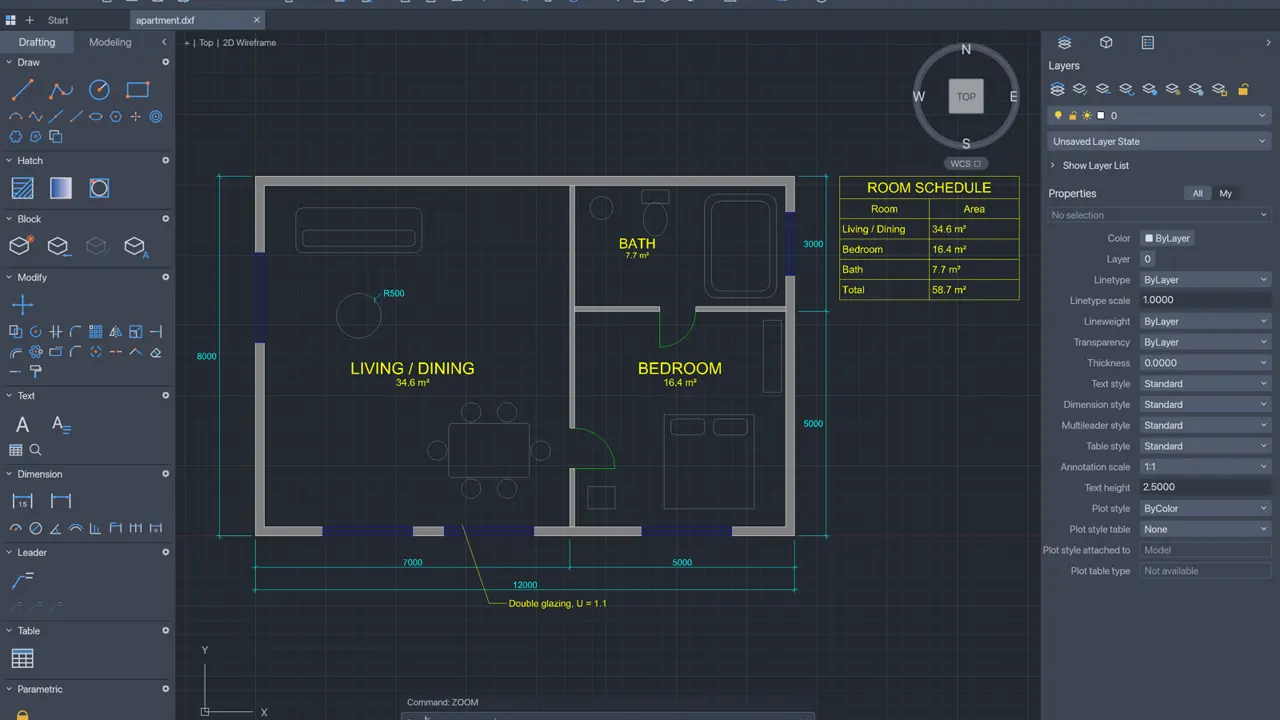
CADCraft apartment plan with drafting tools, layers, properties, and command line
Official CADCraft project screenshot. View source ↗

Install CADCraft MCP from the official project.

CADCraft MCP is not a separate npm or Python package. It runs through the cadcraft-cli binary published or built from the official CADCraft repository.

  1. 1

    Get the command-line binary

    Open the official release page and choose a package that includes cadcraft-cli. Keep the extracted binary in a stable folder because the MCP client configuration points to it. If the command is not on your PATH, use its absolute path in the client configuration.

    Official CADCraft releases ↗
  2. 2

    Or build CADCraft MCP from source

    The repository is a Rust workspace. Clone the official code and build the CLI package in release mode. The resulting executable is placed under target/release. Use the Rust toolchain required by the current repository, not an old cached toolchain.

    git clone https://github.com/storytold/cadcraft
    cd cadcraft
    cargo build --release -p cadcraft-cli
  3. 3

    Verify the server starts

    Run CADCraft MCP once in a terminal before editing any client settings. A local stdio server waits for an MCP client, so a quiet terminal is normal. Stop the manual test, then let your client launch the same command.

    cadcraft-cli mcp
Scope this first test tightly.

Use a disposable folder and a copied drawing. CADCraft documentation warns that unsupported entities are not preserved on save. Installing CADCraft MCP successfully proves only that the server launches; it does not prove DWG or DXF round-trip fidelity for your files.

Configure CADCraft MCP in two supported modes.

Start headless for the smallest moving surface. Use the desktop bridge when you need to watch the drawing change or call connected-only interface tools.

HEADLESS

One private in-process drawing session

In headless mode, CADCraft MCP owns an in-memory session. No CADCraft window opens. This is the simplest setup for creating, inspecting, rendering, and saving a test drawing.

cadcraft-cli mcp

Use it for: controlled file tasks, repeatable scripts, inspection, conversion, and tests where a visible interface is unnecessary.

DESKTOP BRIDGE

Connect to the drawing open on screen

Start CADCraft with a local control port, then point the CADCraft MCP bridge at the same address. The official documentation uses port 7979. Both processes must agree on the host and port.

cadcraft --control 7979
cadcraft-cli mcp --connect 127.0.0.1:7979

Use it for: observing agent actions, inspecting the actual interface, taking screenshots, or clicking a visible control.

Add the headless server to your MCP client

Claude Code, Claude Desktop, and other clients that accept the common mcpServers structure can launch CADCraft MCP over stdio. Replace cadcraft-cli with an absolute executable path when the command is not globally available. JSON does not allow comments, so keep the CADCraft MCP configuration exactly valid.

After saving, restart or reload the MCP client. Confirm that CADCraft MCP appears in the server list and that the client can discover tools before asking it to modify a file.

{
  "mcpServers": {
    "cadcraft": {
      "command": "cadcraft-cli",
      "args": ["mcp"]
    }
  }
}

Optional desktop-bridge configuration

For a bridge, put the connection arguments in the same client entry. The --connect flag requires HOST:PORT; the official server exits rather than silently falling back to a separate headless drawing when that value is missing.

{
  "mcpServers": {
    "cadcraft": {
      "command": "cadcraft-cli",
      "args": ["mcp", "--connect", "127.0.0.1:7979"]
    }
  }
}

CADCraft MCP basic tools and what they return.

The official tool catalog separates command-line input, structured commands, inspection, rendering, and files. Interface tools are available only through the desktop bridge.

ToolPurposeStarter inputMode
command_lineTypes at the CAD command line exactly like a person and returns the prompt, keywords, and output.{"text":"circle 5,2 1"}Both
scriptRuns multiple command lines in one script, similar to a .scr file.{"text":"line 0,0 10,0 zoom e"}Both
executeCalls a command by id with structured JSON parameters and never opens a dialog.Find the schema with list_commands.Both
list_commandsLists command ids, aliases, availability, and parameter documentation; an optional filter narrows the catalog.{"filter":"layer"}Both
inspect_drawingReturns CADCraft MCP counts, extents, layers, styles, blocks, layouts, selection, undo history, and optional entities.{"entities":true,"limit":20}Both
query_entitiesFilters entities by type, layer, or drawing window and returns handles plus geometry.{"type":"CIRCLE","limit":50}Both
find_textFinds readable TEXT, MTEXT, attributes, and multileader content.{"contains":"room"}Both
renderReturns a PNG of the full drawing or a specified drawing window for visual review.{"width":1200,"fit":true}Both
new_drawingCreates a clean metric or imperial drawing session.{"metric":true}Both
openOpens a drawing from an explicit path available to CADCraft MCP.{"path":"C:/work/test.dxf"}Both
saveSaves the current drawing; a new path preserves the original. SVG, PNG, or PDF paths export instead.{"path":"C:/work/test-copy.dxf"}Both
cancelSends Escape to stop the active command before recovery or a new operation.No parametersBoth
screenshot, ui_inspect, ui_clickReads or operates the visible CADCraft interface rather than the headless drawing engine.Use only after a bridge connection.Desktop bridge

Tool names and behavior are based on the official CADCraft MCP guide, checked October 18, 2026. Use list_commands against your installed build because the command catalog can change between releases.

Run a reversible CADCraft MCP first session.

This sequence creates simple geometry, inspects the result, renders a preview, and saves a new DXF. It is a verification exercise, not an engineering drawing.

  1. 1

    Create a metric drawing

    Call new_drawing with {"metric":true}. Starting clean makes the CADCraft MCP result easy to inspect and prevents accidental edits to an existing file.

  2. 2

    Draw a triangle and circle

    Call command_line with line 0,0 @10,0 @0,5 c, then call it again with circle 5,2 1. These are the exact starter commands documented by the project.

  3. 3

    Inspect before saving

    Call inspect_drawing, then use query_entities for LINE and CIRCLE. Verify counts, extents, layers, handles, and coordinates rather than trusting a conversational success message.

  4. 4

    Render a visual check

    Call render with a practical width and fit:true. Review the CADCraft MCP PNG. A render complements geometry inspection; it does not replace coordinate, unit, layer, and file checks.

  5. 5

    Save to a new path and reopen

    Call save with a new .dxf path. Reopen that copy with CADCraft MCP or another CAD program and inspect it again. Keep the original file outside the test directory.

Basic CAD command-line inputs

The command_line tool accepts familiar CAD input. Spaces act as Enter except in text prompts, and an empty string acts as Enter. CADCraft MCP returns the new prompt and any error, so read the reply before sending the next step.

line 0,0 @10,0 @0,5 c
Draw a closed triangle from absolute and relative points.
circle 5,2 1
Draw a circle centered at 5,2 with radius 1.
offset 0.25
Start a quarter-unit offset, then follow the returned selection prompt.
zoom e
Zoom to drawing extents before a screenshot or manual review.

Verify CADCraft MCP before blaming the client.

Most first-run problems come from the executable path, an invalid JSON file, a port mismatch, or using a desktop-only tool in headless mode.

The client says the command was not found

Run cadcraft-cli mcp in a terminal. If the shell cannot find it, put the absolute executable path in the MCP configuration. On Windows, remember the .exe filename and escape backslashes correctly in JSON.

The server starts, but no tools appear

Validate the CADCraft MCP client configuration as JSON, restart the client, and inspect its MCP logs. The transport is stdio; do not configure CADCraft MCP as an HTTP URL unless the official project adds and documents that transport.

The desktop bridge cannot connect

Start the desktop application with cadcraft --control 7979 before the bridge, then confirm the same 127.0.0.1:7979 address is used by --connect. Another process may already own the port.

A screenshot or UI tool is unavailable

Those tools require a CADCraft MCP connection to the running app. Headless mode still supports drawing commands, structured execution, entity inspection, rendering, open, save, and export.

A command reports success but the drawing looks wrong

Use CADCraft MCP inspect_drawing and query_entities, render with fit:true, and examine the returned prompt and error fields. If a command is still active, call cancel before retrying.

You are unsure which JSON parameters to send

Call list_commands with a filter and use the parameter schema returned by your installed CADCraft MCP build. Do not guess field names from a different release or call dotted engine command ids as top-level MCP tools.

Human review stays in the loop.

CADCraft is in early development. CADCraft MCP can repeat a precise operation quickly, including a wrong one. Work in restricted folders, use copied drawings, keep versioned saves, inspect geometry and renders, and require qualified review before fabrication, permitting, construction, or any safety-relevant decision.

CADCraft MCP questions before you connect.

These answers summarize the official server guide and control protocol. Check the linked repository when your installed build behaves differently.

What is CADCraft MCP?

CADCraft MCP is the local Model Context Protocol server included with cadcraft-cli. It lets an MCP-capable client create or open a drawing, run CAD commands, inspect geometry, render a preview, and save or export files.

Does CADCraft MCP require the desktop app?

No. The command cadcraft-cli mcp starts a headless in-process drawing session. Connect it to the desktop app only when you want to watch the agent work or use connected-only interface tools such as screenshot, ui_inspect, and ui_click.

Which CADCraft MCP configuration should I use first?

Start with the headless stdio configuration because it has one command and no port to manage. Move to desktop-bridge mode after you can list tools and complete a small disposable drawing.

Can CADCraft MCP edit DWG and DXF files safely?

The project reads and writes CAD formats, but its official README warns that unsupported entities may not survive a save. Work on a duplicate, inspect the result, save to a new path, and reopen the file in an independent CAD application before relying on it.

Continue with the official CADCraft MCP sources.

This independent tutorial does not distribute binaries or replace project documentation. Commands and tool names were checked against the official repository on October 18, 2026.