LightCraft a local-first photo library and RAW development workflow

LightCraft is an open-source photo library and RAW development application written in Rust. It is designed around importing a shoot, culling quickly, making nondestructive adjustments, applying masks and presets, synchronizing work, and exporting finished photographs. The project emphasizes local files and an inspectable catalog rather than an account-based cloud workflow.

Status
Alpha
Workflow
photo library and RAW development
Platforms
Windows · macOS · Linux · Web
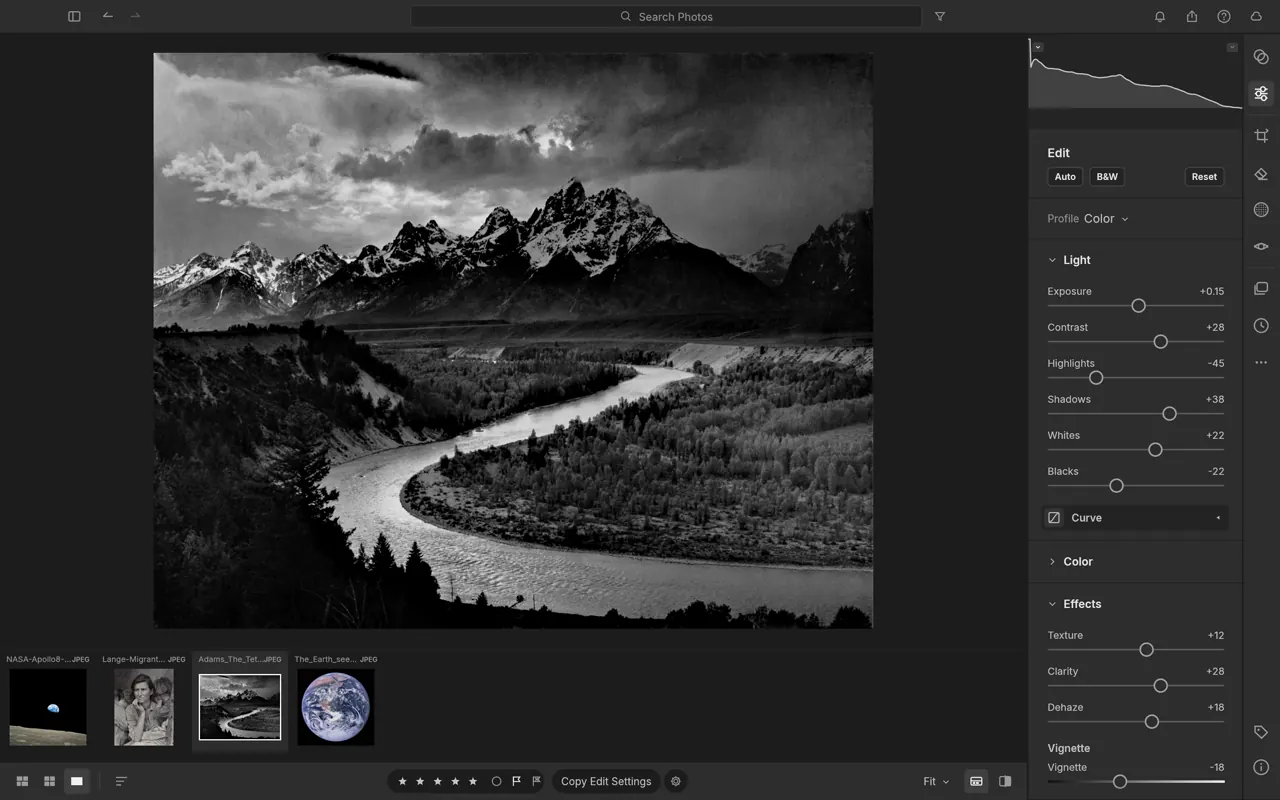
LightCraft Edit view developing a landscape photograph with light and effects controls
Official LightCraft project screenshot. View source ↗

LightCraft features worth testing first.

LightCraft is alpha software with broad ambitions and uneven depth. Camera support, profiles, lens corrections, masking, healing, output modules, and performance depend on the specific file and machine, so a small representative shoot is the right unit of evaluation.

Import, organize, and cull in LightCraft

Create a local library, browse thumbnails, rate or flag images, compare frames, and move through a shoot while previews and renders are prepared in the background. Validate ingest, metadata, sorting, duplicate handling, and backup before importing an irreplaceable archive.

Develop RAW files nondestructively in LightCraft

Adjust exposure, tone, color, curves, detail, geometry, and effects without rewriting the camera original. RAW compatibility is camera-specific; test the exact bodies, compressed formats, profiles, and high-ISO files used in your work.

Mask, synchronize, and reuse in LightCraft

Use local adjustments, masks, presets, profiles, versions, synchronization, and batch export to keep a set visually coherent. Check edge quality, mask tracking or reuse, and whether copied settings behave consistently across different exposures.

Work locally or through commands in LightCraft

The project describes no required account, cloud, telemetry, or subscription. A CLI and MCP mode support headless rendering and agent-controlled adjustments, provided the user grants only the folders the workflow needs.

Build a LightCraft test set from a copy of one ordinary shoot: several RAW files from the same camera, a difficult highlight, deep shadow noise, a lens correction case, a portrait that needs masking, and a panorama or HDR set if those matter to you. Import the copy, cull it, apply a look, synchronize a subset, export JPEG and TIFF, and compare the output at one hundred percent.

A local-first catalog changes responsibility rather than removing it. You control the files and can inspect the operations, but you also need a backup plan for originals, catalog history, presets, exports, and recovery. Before switching a working archive, learn where LightCraft stores its library and how that library is restored on a second machine.

Download LightCraft from the official source.

This independent guide does not host installers. The buttons below open the project's GitHub pages, where the maintainers publish assets, checksums, release notes, source code, and known limitations.

  • Open the official LightCraft Releases page and select the platform package published by the project.
  • Check camera support and release notes before importing a large library or relying on a new RAW format.
  • Use copied originals and a separate test library until import, editing, export, and recovery are verified.

Validate LightCraft, not just the download.

Photo workflows depend on more than whether a RAW file opens. Build a small evaluation library with daylight, mixed light, high ISO, clipped highlights, a portrait, a lens-correction case, and any camera-specific format you rely on. Confirm capture time, rating, keywords, orientation, previews, color profile, white balance, highlight recovery, masking, noise reduction, and exported metadata. Then back up the catalog, restore it to another folder, and verify that edits still point to the copied originals. Compare JPEG and TIFF output in a color-managed viewer, not only inside the editor. That process reveals whether LightCraft fits your current cameras and delivery requirements without putting a working archive or irreplaceable shoot at risk.

LightCraft vs Adobe Lightroom Classic: what changes?

This is a workflow comparison, not a claim of complete feature parity. Use the final column as a test plan before moving real work.

AreaLightCraftAdobe Lightroom ClassicWhat to verify
Library modelLightCraft focuses on a local library and human-readable operations without requiring a cloud account.Lightroom Classic centers a mature local catalog while Adobe Lightroom also offers tightly integrated cloud and mobile workflows.Decide whether local control, cross-device sync, or established catalog tooling is the stronger requirement.
RAW compatibilityLightCraft supports many RAW workflows, but the project openly tracks camera, profile, color, and lens gaps.Lightroom has extensive camera and lens support backed by Adobe's long-running imaging pipeline.Test your exact camera models, compression modes, profiles, lenses, and difficult files.
Develop controlsGlobal adjustments, curves, color grading, presets, profiles, masking, geometry, and export cover much of a modern develop workflow.Lightroom has mature subject-aware tools, ecosystem integrations, output workflows, and deeply tested rendering behavior.Compare the same finished photograph, not slider names. Look at skin, highlights, noise, edges, and export color.
Batch and automationBackground rendering, synchronized edits, CLI commands, and MCP access support repeatable local processing.Lightroom provides presets, sync, plug-ins, tethering, publishing, and Adobe ecosystem automation.Choose the path that preserves intent and gives a reviewer a clear way to undo or reproduce the batch.
Ownership and servicesThe application and code are open, with no mandatory account or subscription in the documented local workflow.Adobe combines proprietary software, subscriptions, cloud services, mobile apps, support, and integrations.Include storage, backup, collaboration, training, and support when comparing total workflow cost.

Comparison sources: the official LightCraft repository, its public roadmap, and the official Adobe Lightroom Classic product page. Product behavior changes; verify the current release before publishing a conclusion.

Should you use LightCraft now?

The honest answer depends on the cost of a failed import, edit, save, handoff, or export—not on how similar the interface looks.

A practical fit

Try LightCraft when…

  • Photographers who want a local-first, open-source library and development workflow.
  • Linux users looking for a Lightroom-like culling, grading, and batch-export experience.
  • Technical workflows that benefit from command-line rendering or carefully scoped agent control.
A reason to wait

Keep Lightroom Classic in the loop when…

  • Archives that depend on a camera, lens, tethering setup, or profile not yet proven in LightCraft.
  • Teams centered on Adobe cloud sync, mobile editing, publishing services, or Lightroom plug-ins.
  • Paid shoots where an alpha catalog or render issue would compromise delivery or recovery.
Use a reversible migration.

Keep originals, duplicate the working file, record the application and release used, compare exports in an independent viewer, and retain the old tool until the complete delivery loop has passed. A successful first launch proves installation; it does not prove compatibility, recoverability, or production readiness.

LightCraft questions before you download.

Short answers for the decisions that should happen before an installer reaches your production machine.

Is LightCraft a free Lightroom alternative?

LightCraft is free and open source and targets a library-plus-RAW-development workflow. It can be a useful alternative for some local workflows, but camera support, rendering, masking, output, and ecosystem needs must be tested first.

Where can I download LightCraft?

Use the official storytold/lightcraft GitHub Releases page linked below. MyPhotoCraft never hosts or modifies the installer files.

Does LightCraft upload photos to the cloud?

The official project describes a local-first workflow with no required account, cloud, telemetry, or subscription. Review the repository and the release you install if privacy or network behavior is a critical requirement.

Can LightCraft edit my camera's RAW files?

Support varies by camera model, compression, profile, and lens. Copy several representative files into a test library and compare color, highlight recovery, noise, detail, and metadata before importing a production archive.